Computing / Fingerprint readers
NanoSecure Review: An $89 USB Fingerprint Reader, Windows Hello Limits and the Windows 7 Claim
A tiny USB fingerprint reader for signing in to a Windows PC. Quick and convenient, but the page claims Windows Hello on Windows 7 and 8, which never had it, and branded readers cost less.

By Ethan Walker, Hardware & Gadget Tester at Top10Gadgets
Updated 26 min readHow we test
Quick answer
Worth it only if your Windows 10 or 11 PC lacks a fingerprint reader, support confirms NanoSecure works with your setup, and the price does not bother you. A USB fingerprint reader makes signing in faster and more pleasant.
Score 3.6/10$89.00 at G Com Pte Ltd
Check price at G Com Pte Ltd (opens G Com Pte Ltd in a new tab)We may earn a commission if you buy through our links.
- Best for
- Windows 10 or 11 users whose PC has no built-in fingerprint reader
- Not for
- Anyone on Windows 7 or 8, which have no Windows Hello and no longer receive security updates
$89.00 at G Com Pte Ltd
Check price at G Com Pte Ltd (opens G Com Pte Ltd in a new tab)We may earn a commission if you buy through our links.
On this page · 13 sections
- 01Our verdict
- 02The short version
- 03Pros & cons
- 04How it works
- 05Who it's for
- 06Does NanoSecure work with your version of Windows?
- 07What do the add-ons say about the standard reader?
- 08How much does NanoSecure cost compared with branded readers?
- 09Is NanoSecure better than Kensington VeriMark or a Windows Hello camera?
- 10Is NanoSecure legit, and what should you check before buying?
- 11How did we score NanoSecure?
- 12How to use NanoSecure: setup, enrolment and everyday tips
- 13Frequently asked questions
Our verdict
Worth it only if your Windows 10 or 11 PC lacks a fingerprint reader, support confirms NanoSecure works with your setup, and the price does not bother you. A USB fingerprint reader makes signing in faster and more pleasant. But the page claims Windows Hello support on Windows 7 and 8, which never had it, sells multi-finger enrolment as an add-on, and leaves Windows 11 compatibility unclear. Branded readers have sold for a fraction of $89. NanoSecure scores 3.6 out of 10, held back by misleading claims and price.
The short version
- What it is: a small USB fingerprint reader for signing in to Windows with a touch.
- Price: $89 for one on 4 October 2026, with a five-pack for $267 preselected. Delivery was listed as free.
- Best trait: quick, convenient sign-in on PCs without a built-in reader.
- Biggest drawback: an incorrect Windows 7 and 8 claim, extras for standard features and a high price.
- Our score: 3.6 out of 10.
Pros & cons
The pros come from Windows Hello itself. The cons are about accuracy, compatibility and price.
What we like
- Fingerprint sign-in to Windows is quicker than typing a password
- Tiny USB stick that can stay plugged into a laptop
- Works with Windows Hello on Windows 10 and 11 if it is a compatible reader, according to the page
- 360-degree reading, so the finger angle matters less, according to the page
- Free delivery, and the seller names a registered company with a Singapore address
What we don't
- Claims Windows Hello support on Windows 7 and 8, which never had Windows Hello
- Enrolling several fingers is sold as a $9 add-on, though Windows Hello supports it as standard
- Microsoft says some third-party readers do not work with Windows 11's Enhanced Sign-in Security
- Branded readers such as Kensington's VeriMark have been sold for much less on deal
- No FIDO certification, false acceptance rate or driver details stated
- Refunds need a returns number first, and you pay return postage to an overseas seller
Sold by G Com Pte Ltd
NanoSecure$89.00
How it works
A USB fingerprint reader contains a small sensor that captures the pattern of ridges on your fingertip. With Windows Hello, Windows stores an encrypted template of your fingerprint on the PC, not the image itself. When you touch the sensor, Windows compares the new reading with the template and unlocks if it matches, falling back to a PIN if it cannot read your finger.
Plug it into a USB port
Step 1: Insert the reader into a USB-A port on your Windows 10 or 11 PC. Windows should install a driver automatically if the reader is supported.
Enrol your fingerprint
Step 2: Open Settings, Accounts, Sign-in options, choose Fingerprint recognition under Windows Hello, set a PIN if asked, and touch the sensor repeatedly to record your print.
Touch to sign in
Step 3: At the lock screen, touch the sensor. Windows compares your print with the stored template on the PC and unlocks if it matches.
Who it's for
NanoSecure suits Windows 10 or 11 users whose laptop or desktop has no fingerprint reader or Windows Hello camera, and who want faster sign-in. It does not suit people on older Windows, Mac users, or anyone who can buy a branded reader for less.
- Windows 10 or 11 users whose PC has no built-in fingerprint reader
- People who sign in many times a day and want something faster than a PIN or password
- Buyers who confirm with support that it works with Windows Hello on their version of Windows
Why NanoSecure appeals
Typing a password or PIN dozens of times a day is tedious, and people often choose weak passwords to save time. The page promises better privacy than passwords, sign-in to Windows with just your fingerprint, the fastest identification in the world at 0.15 seconds, Windows Hello compatibility on Windows 10, 8 and 7, a compact design and a 360-degree fingerprint algorithm.
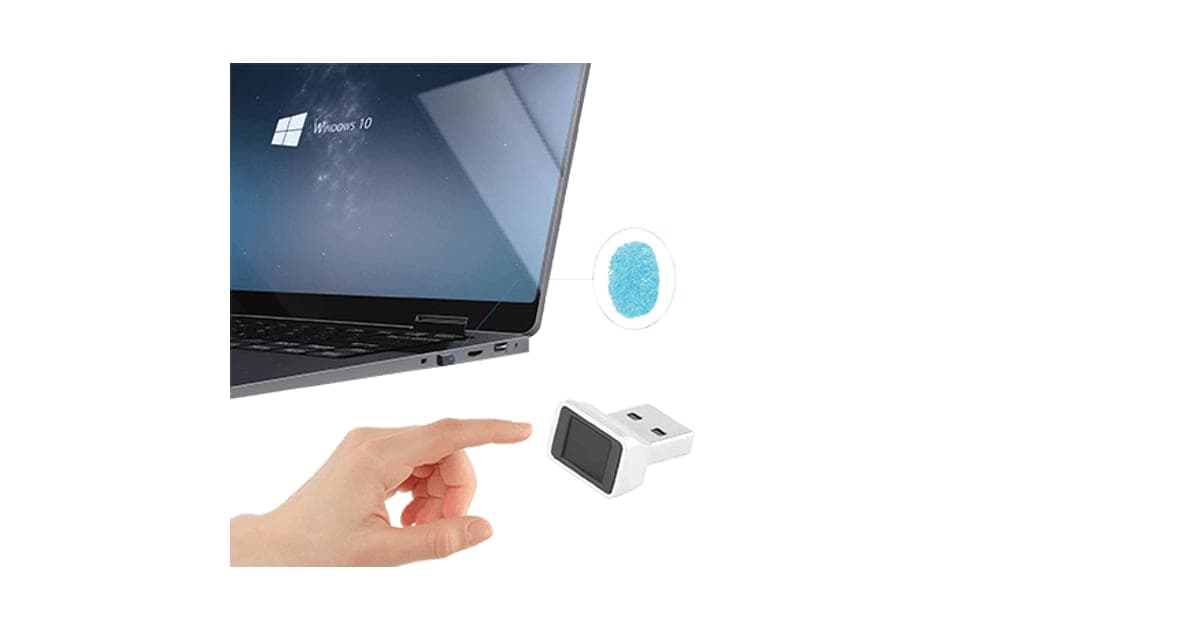
The photos show a tiny reader, hardly bigger than a USB plug, with a finger touching it beside a laptop showing Windows 10.
Who gets the most value
The people who benefit most sign in to the same Windows 10 or 11 PC many times a day and have no built-in reader or face camera. For them, a fingerprint touch replaces dozens of PIN entries a day, which adds up to real convenience. For people who sign in once a day, the benefit is small.
Desktop PC users
Many desktop PCs have no built-in fingerprint reader or face camera. A USB reader is the simplest way to add Windows Hello to a desktop. Plug it into a front USB port or a keyboard with a USB pass-through so it is easy to reach.
Gamers and creators
People who leave their PC for a moment between games or renders often lock it for security. Fingerprint unlock makes that painless. Gaming desktops rarely include fingerprint readers, so a USB reader on the desk or keyboard hub is a common addition.
Laptop users with older machines
Older laptops often lack fingerprint readers. A small reader that stays plugged into a side port adds quick sign-in without much bulk. Check it does not block neighbouring ports.
Travellers
A tiny reader that stays in a laptop's port is easy to forget about, which is good until it snags in a bag. If you travel with a laptop, remove the reader before packing, or choose a very low-profile reader that sits flush with the port.
Shared family PCs
Each person can enrol their own fingerprint on their own Windows account, so signing in is quick for everyone. Children can sign in without learning a long password, though parental controls still matter.
Office workers and hot-desking
In offices, fingerprint sign-in saves time for people who lock their screens every time they step away, as many workplaces require. On a shared hot desk, each person needs their own Windows account with their own enrolled fingerprints. Check with your IT team before plugging any USB device into a work computer, since many organisations block unapproved hardware.
People with accessibility needs
Typing long passwords can be hard for people with some motor or visual impairments. A fingerprint touch can make signing in much easier. For people whose fingerprints read poorly, a Windows Hello face camera may be a better choice. Try both if you can before deciding.
Students
Students often lock and unlock laptops many times a day in libraries and lectures. A small reader that stays plugged in makes that quicker. With school or university-managed laptops, check whether Windows Hello is allowed by the institution's settings.
Who should skip it
Skip NanoSecure if you use Windows 7 or 8, a Mac or Linux, need FIDO2 passkeys for websites, or can buy a branded reader for less.
- Anyone on Windows 7 or 8, which have no Windows Hello and no longer receive security updates
- Mac users, since the page lists only Windows
- People who need FIDO2 passkey support for websites, unless support confirms it
- Price-conscious buyers, since branded readers cost far less
Does NanoSecure work with your version of Windows?
It may work with Windows Hello on Windows 10 and 11, but not on Windows 7 or 8, despite the page's claim. Windows Hello arrived with Windows 10. Microsoft ended support for Windows 7 in 2020, Windows 8.1 in 2023 and Windows 10 in October 2025. On Windows 11, Microsoft says some third-party readers do not support Enhanced Sign-in Security, which may need turning off. Confirm compatibility with support before buying.

What the offer page claims
The headline reads "NanoSecure, smart fingerprint scanner device will protect your desktop or laptop". The bullets are: protect your privacy better than the password method; sign in to Windows with just your fingerprint, no need to remember complex passwords; fastest identification in the world, recognising your biometrics in 0.15 seconds; compatible with Windows Hello, Windows 10, 8 and 7 computers and platforms; compact design, small and easy to carry; and advanced 360-degree all-round detectable fingerprint algorithm, uses biometric technology.
Windows 7 and 8
Windows Hello was introduced with Windows 10. Windows 7 and 8 never had it. Some fingerprint readers worked on older Windows with their own software, but that is a different thing from Windows Hello, and the page does not mention separate software. Microsoft's end of support page says Windows 7 support ended on 14 January 2020 and Windows 8.1 on 10 January 2023, so those systems no longer receive security fixes.
Why older Windows matters for security
A fingerprint reader adds convenience to sign-in, but it does not make an unsupported operating system safe. Windows 7 and 8 no longer receive security fixes, so attackers can exploit known flaws regardless of how you sign in. Upgrading to a supported version of Windows is far more important for security than any reader.
Windows 10
Windows 10 supports Windows Hello fingerprint sign-in with compatible readers. But Microsoft ended Windows 10 support on 14 October 2025, offering Extended Security Updates until October 2027. If you are on Windows 10, plan to move to Windows 11 or join the extended updates programme.
Upgrading to Windows 11
Microsoft offers a free upgrade from Windows 10 to Windows 11 for PCs that meet its requirements, and Extended Security Updates for Windows 10 until October 2027. If your PC qualifies, upgrading also gives you the latest Windows Hello features. Check compatibility in Settings, Update and Security, or with Microsoft's PC Health Check tool.
Windows 11 and Enhanced Sign-in Security
Microsoft's guidance on using third-party fingerprint readers with Windows Hello says some external readers labelled Windows Hello compatible do not support Enhanced Sign-in Security, and that you may need to turn that feature off to use them. Enhanced Sign-in Security strengthens how biometric data is protected, so turning it off is a trade-off. What to do: ask support whether NanoSecure supports it.
Linux and Mac
The page lists only Windows. Fingerprint support on Linux depends on drivers for the specific sensor, and many generic readers are not supported. Macs use Touch ID and do not support third-party USB fingerprint readers for system sign-in. NanoSecure is a Windows-only device in practice.
Driver and certification
Windows Hello works best with readers certified by Microsoft, which install automatically through Windows Update. Uncertified readers may need drivers from the maker, which can break after Windows updates. The page does not say whether NanoSecure is certified or where drivers come from.
"Fastest identification in the world"
The page gives no test or comparison for 0.15 seconds. Most good fingerprint readers recognise a print quickly, and the bigger delay is usually Windows loading your desktop. Treat the claim as marketing.
What the photos show
The main image shows a laptop with the Windows 10 start screen, a blue fingerprint icon and a finger touching a small silver and black reader. The add-on images show glowing fingertips on a raised hand and a blue graphic of a fingerprint scan with percentages. None shows packaging, certification marks or driver information.
"Better than the password method"
Fingerprint sign-in is convenient and hard to watch over your shoulder. Windows Hello keeps your fingerprint template on the device and uses a PIN as backup. It does not replace strong, unique passwords for online accounts, which a password manager and two-factor authentication protect better.
What do the add-ons say about the standard reader?
The page code sells a Multi Fingers Mode for $9 and a Smart Sensor Learning Algorithm for $4, both things that fingerprint readers and Windows Hello normally handle as standard. Windows Hello lets you enrol additional fingers in its own settings. Readers also typically improve recognition as you use them. Selling these as add-ons suggests either a limited standard reader or charges for features you already have.
How Windows Hello handles fingers
In Settings, Accounts, Sign-in options, Fingerprint recognition, Windows Hello offers an option to add another finger. You can add several and remove any you no longer use. That is built into Windows and works with compatible readers, whatever the reader's maker charges.
Multi Fingers Mode
Windows Hello lets you add more fingerprints through Settings, Accounts, Sign-in options. Enrolling a finger on each hand is sensible, so you can sign in whichever hand is free. What to do: ask support what this add-on changes. If Windows Hello already lets you add fingers, you may not need it.
Why add-ons for software features are unusual
Hardware add-ons, such as a cable or case, make sense to sell separately. Software features that live in the reader's firmware or in Windows itself cannot normally be added after purchase with a separate product. Ask support how a $9 or $4 add-on would be delivered: as a different reader, a download or something else.
Smart Sensor Learning Algorithm
Fingerprint systems often refine the stored template as you use them, improving recognition over time. The page sells a "learning algorithm" for $4. Ask what it is and whether the reader works without it.
The car charger
A $9 USB car charger is also offered. It has nothing to do with a fingerprint reader.
Why standard features should not cost extra
Adding more than one finger and improving recognition over time are basic parts of how fingerprint sign-in works. Windows Hello's own settings let you add fingers at no cost. Charging separately for these, as add-ons on top of an $89 reader, is unusual, and in our view a reason to ask questions before buying.
The learning algorithm image
The add-on image is a dark blue graphic of a fingerprint inside a frame, with progress figures such as 25% and 82% completed and the words "fingerprint scanning". It is a stock-style illustration rather than a photo of the product or software. It tells you nothing about what the add-on does.
What is missing
The page does not state FIDO certification, the false acceptance and false rejection rates, the sensor type, driver source or Windows Hello certification. Branded readers usually publish these figures.
How much does NanoSecure cost compared with branded readers?
On 4 October 2026, with the United States selected, one NanoSecure cost $89, shown as half of $178, with free delivery. The five-pack for $267 was preselected. Kensington's VeriMark fingerprint key, a branded reader with Windows Hello and FIDO support, has been listed at around $50 to $60 and on deals for under $20. Many laptops include fingerprint readers or Windows Hello cameras as standard.
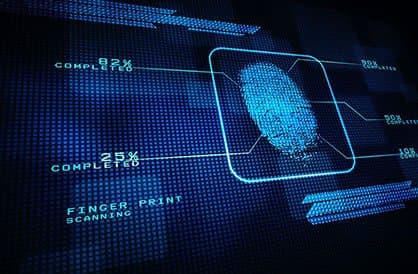
The $4 Smart Sensor Learning Algorithm add-on image
The $9 Fast Car Charger add-on
NanoSecure price and bundles
| Package | Total | Per reader |
|---|---|---|
| 1 NanoSecure | $89 | $89.00 |
| 2 NanoSecure | $139 | $69.50 |
| Buy 2, get 1 free (3) | $177 | $59.00 |
| 4 NanoSecure | $219 | $54.75 |
| Buy 3, get 2 free (5), preselected | $267 | $53.40 |
Most people need one reader per PC. You can check today's packages on the NanoSecure order page (opens G Com Pte Ltd in a new tab).
What branded readers cost
LaptopMag's review of the Kensington VeriMark described a convenient, accurate reader with Windows Hello support. Business retailers have listed it at around $50 to $60, and deal sites have shown it at under $20. Kensington publishes its FIDO support and false acceptance and rejection rates.
Total cost per PC
For one PC, NanoSecure costs $89, or $102 with both software add-ons. A branded reader on deal can cost well under a quarter of that. For a household with several desktops, the difference multiplies quickly, and that is before considering a Windows Hello camera, which some people find more convenient anyway.
The "regular price"
The page shows $178 crossed out next to $89 with a countdown. We found no evidence of NanoSecure selling at $178.
Who sells it
The order page and impressum name G Com Pte Ltd, at 137 Market Street in Singapore, with a company registration number, email and phone number. The footer says "G Com Pte Ltd - Hong Kong". We found no independent rating profile for the store. With the United States selected, the order page said charges would appear as matrixfze, shown in capitals.

NanoSecureScore 3.6/10
Best for: Windows 10 or 11 users whose PC has no built-in fingerprint reader
$89.00 at G Com Pte Ltd · Price checked October 4, 2026
Check price at G Com Pte Ltd (opens G Com Pte Ltd in a new tab)We may earn a commission if you buy through our links.
Is NanoSecure better than Kensington VeriMark or a Windows Hello camera?
No. Kensington's VeriMark is a branded reader with Windows Hello and FIDO support, published accuracy figures and a known support path, usually for less. A Windows Hello face camera offers hands-free sign-in. Many recent laptops already include one or the other. NanoSecure costs more than VeriMark's usual price, with fewer stated details and features sold as extras.
| Option | Windows Hello | FIDO passkeys | Details published | Price seen |
|---|---|---|---|---|
| NanoSecure | Claimed | Not stated | Few | $89 |
| Kensington VeriMark | Yes | Yes | Accuracy rates, FIDO support | About $50 to $60; deals under $20 |
| Windows Hello webcam | Face sign-in | Via Windows | Model-dependent | Varies |
| Built-in laptop reader | Yes | Via Windows | From laptop maker | Included |
What to look for in any fingerprint reader
Look for Windows Hello certification, support for Enhanced Sign-in Security on Windows 11, FIDO2 support if you want passkeys for websites, published false acceptance and rejection rates, and a maker that provides drivers and support. A compact size and a port that suits your PC matter too. NanoSecure's page confirms few of these.
NanoSecure vs Kensington VeriMark
VeriMark is the best-known external fingerprint key. It supports Windows Hello and FIDO standards, so it can also help sign in to some websites with passkeys. Its specifications are published and its price is usually lower. This is a clear rival win.
Total cost of ownership
Fingerprint readers have no running costs, so the purchase price is the whole cost. Over several years, the main risk is a reader that stops working after a Windows update or gets lost. Branded readers from established makers are more likely to receive driver updates, which matters more than a small price difference.
NanoSecure vs a Windows Hello camera
Windows Hello face cameras recognise you as you sit down, with no touch needed. They work well for desktops and cost more than a basic reader, but suit people who find fingerprint readers fiddly.
NanoSecure vs a keyboard with a fingerprint reader
Some keyboards include a built-in fingerprint reader, which puts the sensor right where your hands already are. For desktop users replacing a keyboard anyway, that can be tidier than a USB stick. Check that the keyboard's reader supports Windows Hello.
NanoSecure vs a security key
Hardware security keys protect online accounts with strong two-factor authentication and passkeys. They do not sign in to Windows by fingerprint unless they include a biometric sensor, but they add more protection for email and banking than a sign-in reader.
FIDO2 and passkeys
FIDO2 lets you sign in to supported websites with a passkey instead of a password, often unlocked with a fingerprint. Readers certified for FIDO2, such as Kensington's VeriMark, can act as that authenticator. Windows Hello itself can also store passkeys on the device. The NanoSecure page does not mention FIDO2, so do not assume it supports website sign-in beyond Windows Hello.
Built-in options you may already have
Check Settings, Accounts, Sign-in options on your PC before buying anything. If Windows lists Fingerprint recognition or Facial recognition as available, your PC already has the hardware. Many laptops from the last few years include one or both.
Other computing gear we have reviewed
Our Omni DataSafe review covers an encrypted USB drive and what its security claims really mean. Our KeySmart review and Ondrela review look at everyday carry gadgets. Browse more computing reviews.
If NanoSecure still suits you, check today's packages on the NanoSecure offer page (opens G Com Pte Ltd in a new tab) after confirming compatibility.
NanoSecureScore 3.6/10
Why people buy it: Fingerprint sign-in to Windows is quicker than typing a password
$89.00 at G Com Pte Ltd · Price checked October 4, 2026
Check price at G Com Pte Ltd (opens G Com Pte Ltd in a new tab)We may earn a commission if you buy through our links.
Is NanoSecure legit, and what should you check before buying?
NanoSecure is a real product from a named seller, and a reader should arrive if you order. Before buying, check your Windows version, ask whether it supports Windows Hello and Enhanced Sign-in Security on Windows 11, ask what the add-ons change, change the preselected five-pack, and know that refunds need a returns number and that return postage is yours to pay.
Check your Windows version
What to do: open Settings, System, About to see your version. If you are on Windows 7 or 8, upgrade before buying any fingerprint reader. If you are on Windows 10, plan for Windows 11.
Ask about Windows 11 compatibility
What to do: ask support whether NanoSecure supports Enhanced Sign-in Security, and whether it is certified for Windows Hello.
Check for a Windows Hello logo
What to do: ask support whether NanoSecure is certified for Windows Hello and look for that mention on the packaging when it arrives. Certified readers generally install and work more reliably.
Check the USB port type
The photos show a USB-A plug. Many newer laptops only have USB-C ports. What to do: check your PC has a free USB-A port, or plan to use an adapter, which can make a small reader stick out further and risk damage.
Ask about the add-ons
What to do: ask what Multi Fingers Mode and the learning algorithm change, since Windows Hello supports multiple fingers itself.
Check the selected bundle
The five-pack for $267 was preselected. What to do: choose one reader per PC.
Membership offers
The page code contains text for a "Gadget Discount Club" membership, free for 30 days and then "a small fee of $9 may apply". We did not see it on the order page with the United States selected. What to do: read every checkbox and post-purchase page.
Refunds and returns
The page code promises a 30-day guarantee with a full refund or replacement, less shipping and handling. The terms focus on defective or damaged products, which may be returned within two years once you have a returns number. Return postage is at your cost and is not reimbursed.
What to do: set up Windows Hello on the day it arrives, and contact support at once if Windows does not recognise the reader.
Check your work policy
What to do: if the PC belongs to an employer or school, ask IT before plugging in a fingerprint reader. Many organisations restrict USB devices and manage Windows Hello settings centrally.
Keep your PIN and password safe
Windows Hello always keeps a PIN as backup, and your account still has a password for recovery. What to do: store both safely, ideally in a password manager, so a lost or broken reader never locks you out.
How to buy NanoSecure the smart way
- Check your Windows version and ask support about Windows 11 compatibility.
- Open the NanoSecure order page (opens G Com Pte Ltd in a new tab) and select your country.
- Change the preselected five-pack to one reader per PC.
- Skip the add-ons until support explains what they add.
- Note the card statement name, matrixfze, and save your order email.
- Set up Windows Hello with two fingers on the day it arrives.
How did we score NanoSecure?
NanoSecure scores 3.6 out of 10: claim accuracy 0.4, build durability 1.0, price competitiveness 0.5, usability 1.2 and owner satisfaction 0.5, each out of 2. Fingerprint sign-in is convenient, but the page wrongly claims Windows Hello support on Windows 7 and 8, sells standard features as add-ons, leaves Windows 11 compatibility unclear and costs more than a branded reader.
What owners say
We found no Trustpilot profile for the gadgetxaura.com store and no independent retailer reviews for NanoSecure. Owners of generic USB fingerprint readers elsewhere often like how quickly they sign in, and complain about readers not being recognised after Windows updates, drivers that need manual installation and poor reading with dry or wet fingers.
How the score breaks down
We use the five criteria on our how we test page, each out of 2.
| Criterion | Score | Why |
|---|---|---|
| Claim accuracy | 0.4 / 2 | Windows Hello on Windows 7 and 8 is wrong; "fastest in the world" unsupported |
| Build durability | 1.0 / 2 | Tiny solid-state reader; no published specs |
| Price competitiveness | 0.5 / 2 | More than a branded reader's usual price; standard features sold as add-ons |
| Usability | 1.2 / 2 | Quick sign-in once set up on supported Windows |
| Owner satisfaction | 0.5 / 2 | No independent ratings for this product |
| Total | 3.6 / 10 |
What we did, and did not, do
Nobody on our team has used NanoSecure. We read the offer page our link opens with the United States selected, its code and the seller's terms on 4 October 2026, along with Microsoft's guidance on third-party fingerprint readers and Windows end of support, a LaptopMag review and retailer listings for the Kensington VeriMark, and the top-ranking NanoSecure pages.
How to use NanoSecure: setup, enrolment and everyday tips
Plug NanoSecure into a USB port on Windows 10 or 11, open Settings, Accounts, Sign-in options, set a Windows Hello PIN and enrol at least two fingers. Touch the sensor lightly from different angles during enrolment, keep your fingers clean and dry, and keep your PIN handy for when the reader cannot read your finger.
- Update Windows first. The latest updates help Windows recognise new readers.
- Plug it in. Use a port you can reach easily.
- Set a PIN. Windows Hello needs a PIN as backup.
- Enrol a finger. Follow the prompts, touching the sensor repeatedly at slightly different angles.
- Add a second finger. One on each hand helps.
- Test sign-in. Lock the PC and unlock with your finger a few times.
- Keep it clean. Wipe the sensor gently with a dry cloth.
Enrolling well
During enrolment, place your finger flat, then roll it slightly and touch with the tip and sides, so the template covers more of your print. A thorough enrolment reduces failed reads later. If recognition becomes unreliable, remove the fingerprint and enrol it again.
Choosing which fingers
Enrol the fingers you naturally use to touch the sensor where it sits, often the index finger of the hand nearest the port. Add a finger on the other hand for when you are holding something.
If Windows does not recognise the reader
Check Device Manager for a biometric device, try another USB port and install Windows updates. On Windows 11, check the Enhanced Sign-in Security setting, following Microsoft's guidance. If it still fails, contact support within the guarantee period.
Removing old fingerprints
If you give the PC to someone else, remove your fingerprints in Windows Hello settings and reset the PC. If you give away the reader, it holds no fingerprints itself with Windows Hello, since templates are stored on the PC.
Where to plug it in
On laptops, choose a port on the side of your dominant hand so touching the reader is natural. On desktops, a front port or a USB hub on the desk is easier than reaching behind the case. Avoid ports where the reader will be knocked or block a neighbouring cable.
Dry or wet fingers
Very dry, wet or cut fingers read poorly. In cold weather, warm your hands first. Enrolling the same finger twice, once in each condition, can help some readers.
Keeping the sensor working
Avoid scratching the sensor with rings or keys, and do not clean it with liquids or abrasive cloths. A light wipe with a soft, dry cloth is enough. If recognition gets worse, re-enrol your fingers before assuming the reader is faulty.
Pairing it with good password habits
A fingerprint reader makes signing in to Windows pleasant, but your email, bank and social accounts still depend on passwords. Use a password manager to create unique, strong passwords for every site, turn on two-factor authentication where offered and consider passkeys on sites that support them. Some password managers can be unlocked with Windows Hello, so the fingerprint reader helps there too. That combination does far more for your security than any single gadget.
If you are setting up a new PC, enrol your fingerprints after you have set up your password manager and two-factor authentication, so the convenience of fingerprint sign-in sits on top of good security rather than replacing it. Review your sign-in options once a year, remove fingerprints for people who no longer use the PC, and check Windows Update has installed the latest security fixes. Those few minutes each year keep the convenience of a fingerprint reader from turning into a gap in your security, and they make sure the people with access to your PC are the ones you expect. Set a calendar reminder so the review actually happens every year.
Privacy of biometric data
Biometric data is sensitive because you cannot change your fingerprint if it leaks, unlike a password. Windows Hello is designed so the template stays on your device, protected by its security hardware. A reader that needs its own app or cloud service could work differently. Before using any reader that installs extra software, read how that software handles fingerprint data.
Fingerprint sign-in and remote access
If you connect to your PC remotely, for example from another device, fingerprint sign-in does not apply; you will use your password or PIN. Keep those strong, because remote access bypasses the reader entirely. A fingerprint reader protects the physical sign-in, not every way into your account.
Using it with several user accounts
Each person on a shared PC should have their own Windows account and enrol their own fingers under that account. Windows Hello matches fingerprints to the account that enrolled them, so one reader can serve the whole family. Children's accounts can use fingerprints too, which saves them remembering a complex password.
When a reader starts failing
If the reader stops responding entirely, check Device Manager for errors, unplug and replug it, and restart the PC. If Windows no longer lists the reader, a recent update may have removed its driver. Reinstalling the driver, if the seller provides one, or contacting support within the guarantee period are the next steps. Keep using your PIN in the meantime.
Approving apps with your fingerprint
Some apps and Windows features can ask for Windows Hello to confirm it is you, for example when viewing saved passwords in some browsers or approving app installs. A fingerprint touch is quicker than typing your PIN each time. Check which apps on your PC support it.
Signing in when the reader fails
Use your Windows Hello PIN. Keep your account password stored safely too, in case you need it for recovery.
Other questions about USB fingerprint readers
Is my fingerprint stored online? With Windows Hello, the fingerprint template is stored on your PC and protected by the device's security hardware, not uploaded to Microsoft. Third-party software may work differently, so check if the reader uses any extra app.
Can someone fool a fingerprint reader? Researchers have shown that some readers can be fooled with fake fingerprints in lab conditions. Better readers include anti-spoofing measures. For most home users, the risk is low compared with weak or reused passwords.
Does a fingerprint reader slow down my PC? No. It only works when you sign in or approve something.
Can I use it with a password manager? Some password managers can use Windows Hello to unlock, which works with a compatible fingerprint reader. Check your password manager's settings.
What happens if I cut my finger? Use another enrolled finger or your PIN. This is a good reason to enrol fingers on both hands.
Will it work after a Windows update? Certified readers usually keep working. Uncertified ones sometimes need drivers reinstalling. Keep the maker's driver details if any came with it.
NanoSecureScore 3.6/10
Before you buy: Check the final price, shipping and return terms at checkout.
$89.00 at G Com Pte Ltd · Price checked October 4, 2026
Check price at G Com Pte Ltd (opens G Com Pte Ltd in a new tab)We may earn a commission if you buy through our links.
Frequently asked questions
Does NanoSecure work with Windows 7?
Not with Windows Hello. Windows Hello arrived with Windows 10 and was never available on Windows 7 or 8. Microsoft ended Windows 7 support in 2020 and Windows 8.1 support in 2023, so those systems no longer receive security fixes. Use a supported version of Windows.
Does NanoSecure work with Windows 11?
It may, but check first. Microsoft says some third-party fingerprint readers labelled Windows Hello compatible do not support Windows 11's Enhanced Sign-in Security, and you may need to turn that feature off. Ask support whether NanoSecure supports it before buying.
Is a fingerprint more secure than a password?
It can be more convenient and harder to shoulder-surf. With Windows Hello, the fingerprint unlocks the device locally and is backed by a PIN. A strong password manager, unique passwords and two-factor authentication remain important for online accounts.
How much does NanoSecure cost?
With the United States selected on 4 October 2026, the offer page listed one NanoSecure for $89, two for $139, three for $177, four for $219 and five for $267. The five-pack was preselected. Delivery was listed as free, and a 3-year warranty add-on cost $14.
Can I enrol more than one finger?
Windows Hello lets you add more than one fingerprint in its settings. The NanoSecure page sells a Multi Fingers Mode as a $9 add-on. Ask support what that add-on changes, since Windows itself supports several fingers.
What is a good alternative to NanoSecure?
Kensington's VeriMark fingerprint key supports Windows Hello and FIDO standards. It has been listed at around $50 to $60 and on deal for under $20. Many laptops also have built-in fingerprint readers or Windows Hello cameras.
Is NanoSecure legit?
It is a real product sold by G Com Pte Ltd, which lists a Singapore address, company number, email and phone. The concerns are the Windows 7 and 8 claim, features sold as add-ons, unclear Windows 11 compatibility, the preselected five-pack and refund terms that leave return postage to you.
We may earn a commission if you buy through our links.
Prices accurate as of October 4, 2026. Check the seller's checkout for current pricing, promotions and terms.
What we checked: No hands-on use. Claims, photos, prices with the United States selected, the preselected bundle, add-ons and their images, warranty and card statement name from the NanoSecure offer page our link opens (gadgetxaura.com) on 2026-10-04, plus the bundle and add-on data in the page's own code. Refund and cancellation terms from the same site's terms page that day. Microsoft's guidance on third-party fingerprint readers with Windows Hello and its Windows end-of-support page, a LaptopMag review and retailer listings for the Kensington VeriMark, and the top-ranking NanoSecure pages were read the same day.

About the author
Ethan Walker, Hardware & Gadget Tester
Ethan Walker covers hardware for Top10Gadgets: audio, computing, phone accessories, chargers, tools, car gadgets and sports equipment. Ethan believes a product should be judged on what happens when people actually use it…
- Headphones and speakers
- Chargers and phone accessories
- Tools and emergency gear
- Car accessories
- Durability and real-world performance
Writing for Top10Gadgets since 2026Full profile