WiFi Gadgets / Wi-Fi repeaters
WIFI UltraBoost Review: A $49 Plug-In Wi-Fi Repeater, What It Can Fix, and Why It Will Not Make Your Internet Faster
A small plug-in Wi-Fi repeater that can carry a usable signal a room or two from your router, but the page lists no Wi-Fi standard or speed.

By Ryan Mitchell, Consumer Technology Writer at Top10Gadgets
Updated 27 min readHow we test
Quick answer
It depends on what is wrong with your Wi-Fi. If one room sits just beyond your router's reach, WIFI UltraBoost is a plug-in repeater that can carry a usable signal there, and at $49 for one it is a cheap thing to try.
Score 3.4/10$49.00 at G Com Pte Ltd
Check price at G Com Pte Ltd (opens G Com Pte Ltd in a new tab)We may earn a commission if you buy through our links.
- Best for
- People with one room or corner of a small home where the Wi-Fi drops out
- Not for
- Anyone hoping to speed up a slow internet plan
$49.00 at G Com Pte Ltd
Check price at G Com Pte Ltd (opens G Com Pte Ltd in a new tab)We may earn a commission if you buy through our links.
On this page · 12 sections
- 01Our verdict
- 02The short version
- 03Pros & cons
- 04How it works
- 05Who it's for
- 06Does WIFI UltraBoost make your internet faster?
- 07How much does WIFI UltraBoost cost, and what is sold separately?
- 08Is WIFI UltraBoost better than a TP-Link extender or mesh Wi-Fi?
- 09Is WIFI UltraBoost legit, and what should you check before buying?
- 10How did we score WIFI UltraBoost?
- 11How to use WIFI UltraBoost: placement, setup and fixes
- 12Frequently asked questions
Our verdict
It depends on what is wrong with your Wi-Fi. If one room sits just beyond your router's reach, WIFI UltraBoost is a plug-in repeater that can carry a usable signal there, and at $49 for one it is a cheap thing to try. If your internet is slow everywhere, it cannot help, whatever the page says about faster downloads. The page lists no band, standard or speed, sells the 300 Mbps Ethernet option as a $9 add-on, and branded TP-Link extenders have been listed for less. WIFI UltraBoost scores 3.4 out of 10, held back by vague specifications and price.
The short version
- What it is: a small Wi-Fi repeater that plugs into a wall socket and passes your router's signal on to a weak area.
- Price: $49 for one on 4 October 2026, with a five-pack for $135 preselected. Delivery was listed as free.
- Best trait: a simple plug-in fix for one dead zone, with no cables to run.
- Biggest drawback: it cannot raise your internet speed, and the page gives no specifications to judge it by.
- Our score: 3.4 out of 10.
Pros & cons
The pros come from what plug-in repeaters do well. The cons are about overstated claims, missing specifications and price compared with branded extenders.
What we like
- Plugs straight into a wall socket, with no cables or software needed for basic setup
- Can bring a usable signal to a room your router barely reaches
- The add-on photo shows an Ethernet port, useful for a TV or games console near the repeater
- One unit at $49 is cheap enough to try in a single dead zone
- Free delivery, and the seller names a registered company with a Singapore address
What we don't
- Cannot make your internet plan faster, despite claims of faster downloads and no more lag
- The page lists no Wi-Fi standard, frequency band, range or speed for the repeater itself
- The 300 Mbps Ethernet connectivity option is sold as a $9 add-on
- Looks like a generic single-band repeater, which typically halves speed for devices connected to it
- TP-Link's dual-band RE220 has been listed at $15.30 and the RE315 at $24.99
- Refunds need a returns number first, and you pay return postage to an overseas seller
Sold by G Com Pte Ltd
WIFI UltraBoost$49.00
How it works
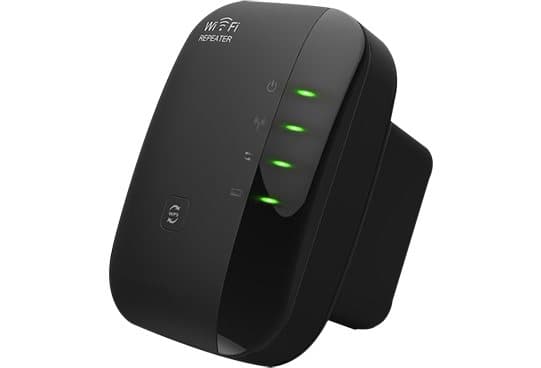
A Wi-Fi repeater is a small radio that sits between your router and a room with a weak signal. It listens to your router, then sends the same data out again on its own signal, so devices in the far room get a stronger connection. WIFI UltraBoost does this from a box that plugs straight into a wall socket, with status lights on the front to show power and signal.
The important word is "repeat". The repeater does not create new internet capacity. Everything still travels through your router and your internet plan, so the fastest the repeater can ever deliver is what the router gives it. In practice, it delivers less.
Plug it in halfway
Step 1: Plug the repeater into a wall socket roughly halfway between your router and the area with a weak signal, where it can still pick up the router well.
Link it to your router
Step 2: Pair it with your router, usually with the WPS buttons on both devices or through a setup page in a phone or computer browser.
Connect in the dead zone
Step 3: Your devices in the weak area join the repeater's network. It receives your router's signal and sends it on, so the far room gets coverage, though not extra internet speed.
Why single-band repeaters lose speed
Basic repeaters use one radio on one band. Every piece of data has to travel twice through the air: once from the router to the repeater, and once from the repeater to your phone or laptop. Because the radio cannot listen and talk at the same moment on the same channel, the airtime available for your data is roughly halved. Coolblue's guide to Wi-Fi repeaters explains the same trade-off.
Dual-band extenders avoid much of that loss by using one band to talk to the router and the other to talk to your devices. The WIFI UltraBoost page does not say whether it is single or dual band, which matters more than any other detail.
What the 300 Mbps figure means
The only speed on the order page is "up to 300 Mbps", attached to the Wi-Fi and RJ45 connectivity add-on. That figure is the usual headline rating for 2.4 GHz Wi-Fi 4 (802.11n) devices with two antennas. It is a theoretical link rate between radios in ideal conditions, not the internet speed you will see. Real-world throughput through a single-band repeater is usually a fraction of it.
Status lights and setup buttons
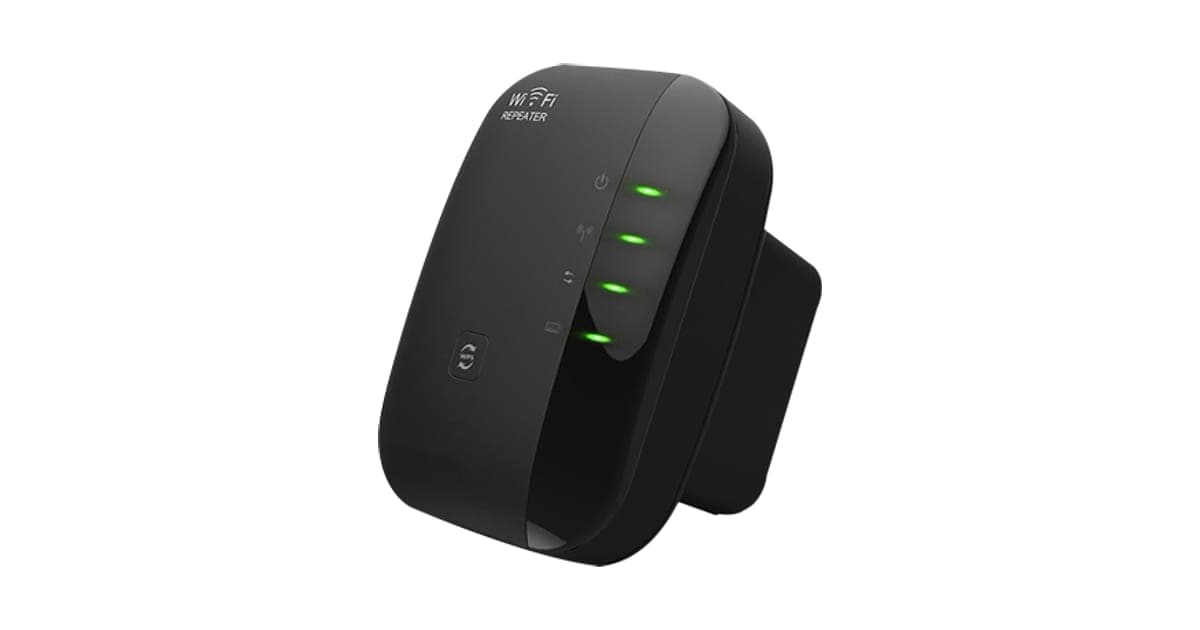
The product photo shows four green lights on the front, and the add-on photo shows the white version with small icons beside them. On similar repeaters, these lights usually show power, the link to the router, the strength of that link and activity on the Ethernet port. Most also have a WPS button that pairs the repeater with a router at the press of a button. The page does not describe the lights or buttons, so the leaflet in the box is your guide.
Who it's for
WIFI UltraBoost suits someone whose router covers most of a small home well, but whose bedroom, garden office or back room gets one bar or drops out. It also suits renters who cannot move the router or run cables. It does not suit anyone whose internet is slow everywhere, or anyone with a large home that needs strong coverage in many rooms.
- People with one room or corner of a small home where the Wi-Fi drops out
- Renters who cannot move the router or run cables
- Anyone who wants a cheap first fix before paying for mesh Wi-Fi
Why WIFI UltraBoost appeals
The appeal is simplicity. A dead zone is annoying, mesh systems cost much more, and running a cable through the walls is a job most people avoid. A small box that plugs in near the problem and promises to fix it sounds ideal, and for the right home it can work. At $49 for one, it costs less than a mesh system and far less than a call-out from an installer.
The offer page is also easy to read. It lists six short claims, a price and a free delivery promise, with none of the jargon that branded extender boxes carry. That simplicity is the reason we spend most of this review explaining what the page leaves out.
People with one weak room
The best case for a repeater is one room just beyond the router's reach. A bedroom at the far end of a flat, a kitchen behind a thick wall or a loft room above the router are typical. In those cases, a repeater placed between the router and the room can turn an unusable connection into a steady one. For browsing, messaging, music and standard-definition video, that is often all you need.
Renters
Renters often cannot move the router from where the provider installed it, or drill holes for cables. A plug-in repeater needs nothing more than a wall socket and leaves no trace when you move out. If you do move, it comes with you and can be paired with a new router in a few minutes.
Garden offices and outbuildings
A repeater near a back window can sometimes push enough signal into a garden office or shed for email and browsing. Glass, brick and distance all weaken Wi-Fi, so results vary widely. For a garden office used for video calls every day, a powerline adapter with Wi-Fi, an outdoor access point or a cable usually works better. The repeater is a cheap first step to see whether anything reaches.
Smart home devices on 2.4 GHz
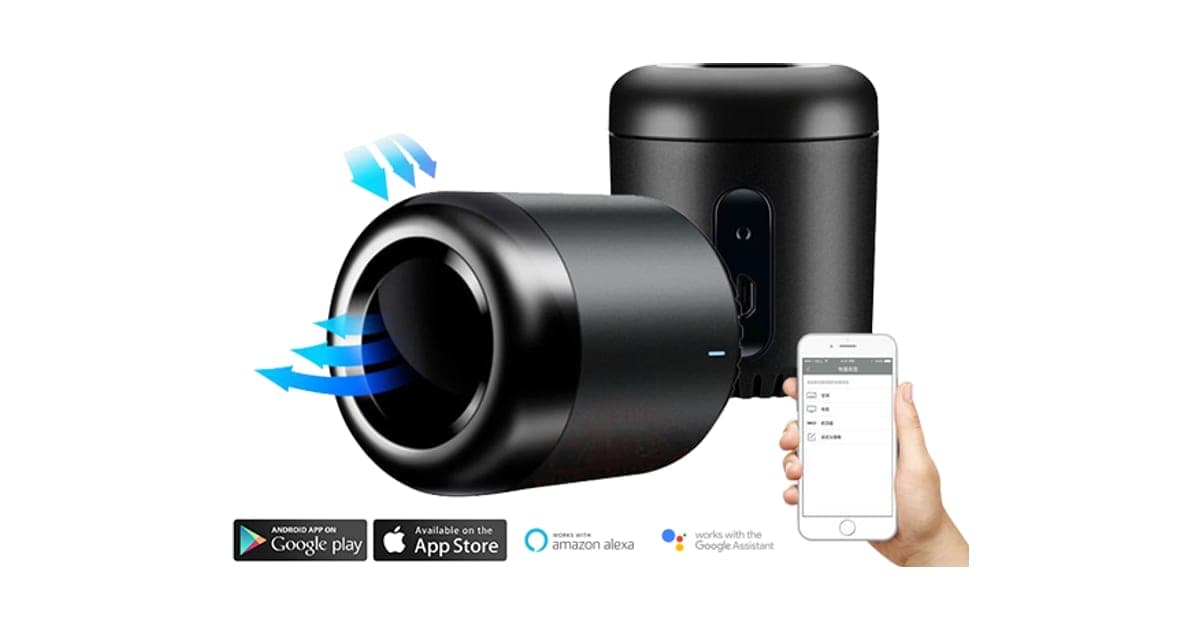
Many smart plugs, cameras, doorbells and infrared hubs only connect to 2.4 GHz Wi-Fi, and they often sit at the edges of a home: by the front door, in the garage or in a back bedroom. A 2.4 GHz repeater can help those devices stay online. Our HomeNETIX review covers one such infrared hub that needs a steady 2.4 GHz signal in the room it controls.
Streaming boxes in a far room
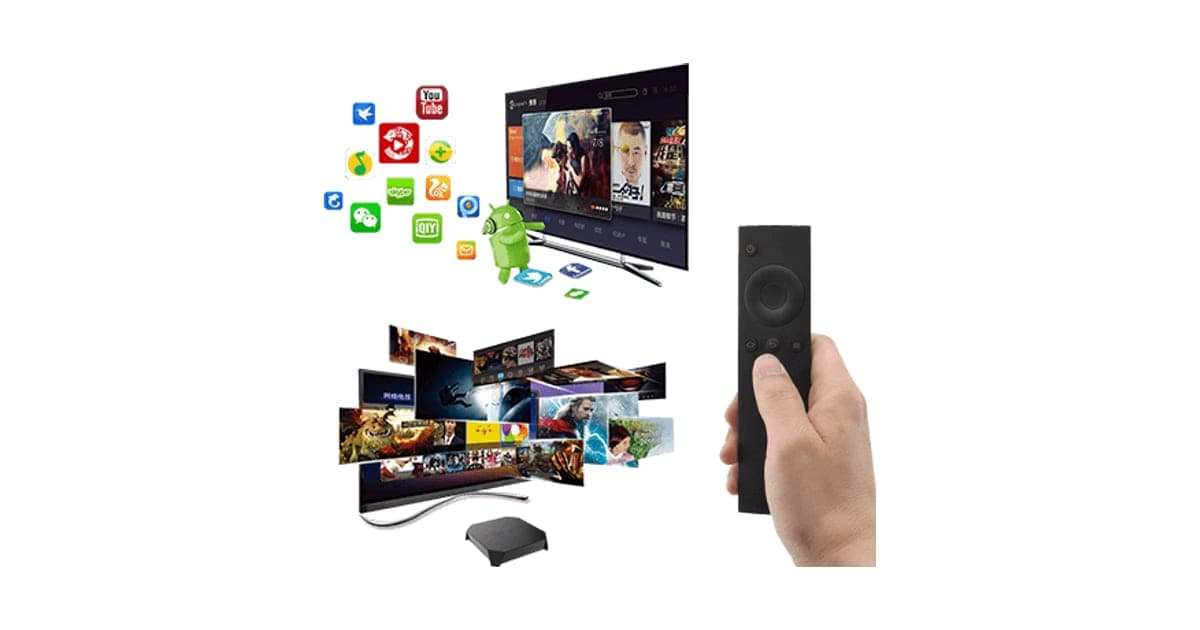
A streaming box or smart TV in a bedroom often struggles with a weak signal, especially for HD and 4K video. A repeater can help if the signal is the problem, and the Ethernet port shown in the add-on photo lets you plug the box in by cable for a steadier link. If you are weighing a cheap streaming box for that room, our AndroidTV box review explains why we would avoid that particular one.
Families with lots of devices
Homes with several phones, tablets, consoles and laptops put more load on Wi-Fi. A single-band repeater shares its halved bandwidth among everything connected to it. For one or two devices in a far room, that is fine. For a busy family room with several people streaming, a dual-band extender or mesh system copes much better.
Who should skip it
Skip WIFI UltraBoost if your internet is slow even next to the router, because a repeater cannot fix a slow plan. Skip it for a large home, since one repeater covers one area. Skip it if you game online or work on video calls all day, because repeaters add delay. And skip it if you want a branded extender with an app, security updates and clear specifications, which TP-Link sells for less.
- Anyone hoping to speed up a slow internet plan
- Large homes, or homes with thick walls, that need whole-home coverage
- Gamers and home workers who need the lowest delay on video calls
- Buyers who want a branded extender with security updates and support
Does WIFI UltraBoost make your internet faster?
No, not in the sense most buyers mean. According to the offer page, it gives faster downloads, no more internet lag and a stronger connection. A repeater can improve the signal in a weak room, which can make browsing there feel faster. It cannot raise the speed of your internet plan, and a single-band repeater usually halves the speed available to devices connected to it. Lag can also get worse, not better.
"Faster Downloads"
Your download speed is capped by your internet plan, your router and the quality of the Wi-Fi link to your device. A repeater only affects the last of these. If your phone in the back bedroom gets a weak, unstable signal, connecting it to a repeater with a strong link back to the router can raise the speed you actually see there. That is a real improvement, but it is not the same as faster downloads in general.
Next to the router, or in rooms that already have a good signal, a repeater cannot make downloads faster at all. If you connect to the repeater when the router signal is strong, speeds will usually drop.
What this means for you: run a speed test next to the router and in the weak room before buying. If the speed next to the router is already slow, the problem is your plan or router, and a repeater will not help.
"No More Internet Lag"
Lag in games and video calls comes from latency: the time data takes to make a round trip. A repeater adds an extra hop, and on a single band it has to wait for its turn to receive and send. That usually adds a little delay rather than removing it. A repeater can reduce dropouts and stutters caused by a very weak signal, which feels like less lag, but it cannot cut the delay between your home and the game server.
"Eliminates Connectivity Problems in Dead Zones"
This is the claim a repeater can honestly meet, within limits. If the dead zone is close enough to the router that the repeater can sit between them with a strong link back, the repeater can bring coverage to it. If the dead zone is behind several walls, on a different floor or in a large home, one repeater may not reach. The word "eliminates" promises more than any single repeater can guarantee.

"Connect Anywhere & Everywhere in Your House"
One plug-in repeater extends coverage in one direction from one spot. "Everywhere in your house" depends entirely on the size and layout of the house. In a small flat it may be close to true. In a three-storey home with brick walls, you would need mesh Wi-Fi or several access points to cover every room.
"Creates a Stronger, More Reliable Connection"
In the weak room, connecting to a nearby repeater can give your device a stronger signal and fewer dropouts. Overall reliability, though, now depends on two links instead of one, and on a small, cheap device staying cool and stable plugged into a socket for months. Owners of generic repeaters often report needing to restart them every so often.
"Easy & Quick Installation"
This claim is broadly fair for plug-in repeaters. If your router has a WPS button, pairing can take a minute. Without WPS, setup usually means joining the repeater's own network with a phone or laptop and opening a setup page in a browser, which is a little fiddlier. The page does not say which method UltraBoost uses or whether there is an app.
What the page does not say
The page lists no Wi-Fi standard (Wi-Fi 4, 5 or 6), no frequency band, no range in metres or feet, no number of devices supported, no security protocols and no dimensions. Branded extenders print all of these on the box. Without them, you cannot judge whether UltraBoost suits your home before it arrives.
What to do: ask support which Wi-Fi standard and bands it supports, whether it works with WPA3 routers, and how setup works. If they cannot answer clearly, that tells you something.
How the photos compare with generic repeaters
The black and white plug-in design with rounded ends, a row of status lights, a side Ethernet port and a WPS button closely resembles generic "Wireless-N" 300 Mbps repeaters that are sold under many names on marketplaces. We cannot confirm the parts inside, and identical shells can hold different chips. But the resemblance, and the 300 Mbps figure, suggest a basic single-band 2.4 GHz repeater rather than anything newer.
How much does WIFI UltraBoost cost, and what is sold separately?
With the United States selected on 4 October 2026, one WIFI UltraBoost cost $49, two cost $69, three cost $98, four cost $123 and five cost $135, with the five-pack preselected. Delivery was listed as free. A 3-year warranty cost $9, the Wi-Fi and RJ45 300 Mbps connectivity add-on cost $9, international plugs cost $4 and a car charger cost $9. TP-Link's dual-band RE220 has been listed at $15.30.
WIFI UltraBoost price and bundles
| Bundle | Price | Per unit |
|---|---|---|
| 1 repeater | $49 | $49 |
| 2 repeaters | $69 | $34.50 |
| Buy 2, get 1 free (3) | $98 | About $32.67 |
| 4 repeaters | $123 | $30.75 |
| Buy 3, get 2 free (5) | $135 | $27 |
The page shows a crossed-out "regular" price of $98 for one, twice the single price, and calls the $49 a 50% discount. We found no evidence that anyone pays $98, so treat that as an anchor rather than a real saving.
The add-ons
The order page offers three add-ons, each shown with a higher "old" price:
- Wi-Fi and RJ45 300 Mbps connectivity add-on, $9 (old price $29): described as a transfer rate of up to 300 Mbps "for all applications using LAN RJ45 connection".
- International electric plugs option, $4 (old price $9): US, EU, Australian and UK plugs.
- Fast car charger, $9 (old price $19): a dual-USB car charger, unrelated to Wi-Fi.
The connectivity add-on is the odd one
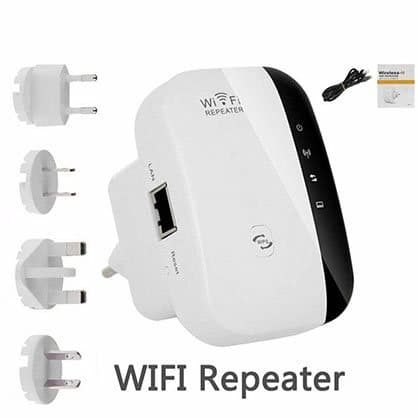
The international plugs photo already shows a repeater with a network port on its side and a short cable. So the Ethernet port appears to be part of the hardware. The $9 add-on is described as enabling 300 Mbps for wired connections, but the page does not explain what it physically adds: a cable, a different model or nothing more than a setting. That is the single most important question to ask support before ordering.
What to do: ask whether the Ethernet port works without the add-on, and what exactly you receive for the $9. If you only need wireless repeating, you may not need it at all.
The plug question
US buyers need a US plug. The add-on photo shows interchangeable plug heads, which suggests the repeater may arrive with a plug for one region and adapters sold separately. If the default plug does not fit your sockets, the $4 add-on becomes necessary. Ask support which plug ships to your country.
What a branded extender costs
TP-Link's RE220, a dual-band AC750 plug-in extender, was listed at $15.30 at Amazon in June 2026, according to price tracker ShopSavvy. The RE315, a dual-band AC1200 model that Engadget named a budget pick, has been listed at $24.99, with Amazon prices between about $30 and $35 in 2026. Both list their Wi-Fi standard, bands, Ethernet port and app on the box.
That means one WIFI UltraBoost at $49 costs about twice the price of a branded dual-band extender, before any add-ons.
Total cost of one with add-ons
One repeater with the connectivity add-on and warranty comes to $67. With the plug option, $71. That is close to three times what the TP-Link RE220 has sold for, and more than twice the RE315's listed price, without the clear specifications or support of either.
The multi-pack trap
Five repeaters for $135 sounds like good value at $27 each. But most homes need one repeater, and chaining several single-band repeaters makes speed worse with every hop. More than one only makes sense if you have separate dead zones in different directions from the router, each close enough to reach. For most people, the preselected five-pack is four repeaters too many.
Who sells it
The seller is G Com Pte Ltd, listed at 137 Market Street, #04-01 Grace Global Raffles, Singapore 048943, with a support email and phone number. The page footer reads "G Com Pte Ltd - Hong Kong". The card statement will show "drone720x.com", which can confuse people checking their bank statement later.

WIFI UltraBoostScore 3.4/10
Best for: People with one room or corner of a small home where the Wi-Fi drops out
$49.00 at G Com Pte Ltd · Price checked October 4, 2026
Check price at G Com Pte Ltd (opens G Com Pte Ltd in a new tab)We may earn a commission if you buy through our links.
Is WIFI UltraBoost better than a TP-Link extender or mesh Wi-Fi?
For most buyers, no. A branded dual-band extender such as TP-Link's RE315 lists its standard, bands and app, has been sold for $24.99, and usually keeps more speed than a single-band repeater. Mesh Wi-Fi costs more but covers whole homes better. WIFI UltraBoost's only real advantages are simplicity and the possibility of a cheap one-room fix, and branded extenders match it on both.
| WIFI UltraBoost | TP-Link RE220 | TP-Link RE315 | Mesh Wi-Fi kit | |
|---|---|---|---|---|
| Price seen | $49 | $15.30 (June 2026) | $24.99 to $34.97 | Usually $100 or more |
| Bands | Not stated | Dual band | Dual band | Dual or tri band |
| Wi-Fi standard | Not stated | Wi-Fi 5 (AC750) | Wi-Fi 5 (AC1200) | Wi-Fi 5, 6 or 7 |
| Ethernet port | Shown in add-on photo | Yes | Yes | Yes |
| App and updates | Not stated | TP-Link Tether app | TP-Link Tether app | Brand app |
| Best for | One weak room | One weak room | One or two weak rooms | Whole home |
WIFI UltraBoost vs TP-Link RE220
The RE220 is a plug-in dual-band extender with an Ethernet port, sold for around $15 in mid-2026 according to ShopSavvy. It can use one band to talk to your router and the other for your devices, which keeps more speed than a single-band repeater. It costs less than a third of UltraBoost's single price, and you know exactly what you are getting. For one weak room, it is the better buy.
WIFI UltraBoost vs TP-Link RE315
The RE315 is a step up, with faster AC1200 Wi-Fi and TP-Link's OneMesh support, which lets it work with compatible TP-Link routers under one network name. It has been listed at $24.99, and Engadget picked it as a budget extender. It still costs about half the price of one UltraBoost.
WIFI UltraBoost vs mesh Wi-Fi
Mesh systems replace or work alongside your router with two or three units that talk to each other and share one network name. Your devices move between them as you walk around. They cost more, often $100 or more for a basic kit, but they give much more even coverage in large homes and on several floors. If you have more than one dead zone, mesh is usually the right answer and a repeater is a stopgap.
WIFI UltraBoost vs moving the router
The cheapest fix is often free. A router hidden in a cupboard, behind a TV or at one end of the home wastes much of its range. Moving it higher, more central and away from metal and fish tanks can fix a weak room without buying anything. Try this before any extender.
WIFI UltraBoost vs powerline adapters
Powerline adapters send internet through your home's electrical wiring. One plugs in near the router and connects by cable, and the other plugs in near the weak room and gives Ethernet or Wi-Fi there. They can work well through walls that block Wi-Fi, especially in older homes, though results depend on the wiring. They cost more than a cheap repeater.
WIFI UltraBoost vs a cable
A network cable from the router to the far room is still the fastest and most reliable connection. Flat cables can run under carpets or along skirting boards. For a games console, desktop PC or home office, a cable beats any wireless extender.
WIFI UltraBoost vs a mobile hotspot
If the problem is not your home Wi-Fi but having no broadband at all, a mobile hotspot is a different tool. Our Ryoko PRO review covers a portable hotspot that uses mobile data instead of a home connection, with its own limits on data and speed.
When UltraBoost could still make sense
If you live outside the US, have a router without 5 GHz, need only basic browsing in one room and prefer a single order with free delivery, UltraBoost is a reasonable product. It just costs more than it should and tells you less than it should. Our Wi-Fi gadgets hub collects the other connectivity products we have reviewed.
WIFI UltraBoostScore 3.4/10
Why people buy it: Plugs straight into a wall socket, with no cables or software needed for basic setup
$49.00 at G Com Pte Ltd · Price checked October 4, 2026
Check price at G Com Pte Ltd (opens G Com Pte Ltd in a new tab)We may earn a commission if you buy through our links.
Is WIFI UltraBoost legit, and what should you check before buying?
WIFI UltraBoost is a real repeater sold by G Com Pte Ltd, a company that lists a Singapore address and support contacts. The issues are a page with no technical specifications, claims of faster downloads that a repeater cannot deliver, a $9 add-on for wired speed, a preselected five-pack and refund terms that need a returns number and leave return postage to you. Each is manageable if you check before ordering.
Check your internet speed first
What to do: run a speed test next to your router, then in the weak room. If both are slow, call your provider or replace the router. If the speed is good next to the router and poor in the far room, a repeater may help.
Ask about bands and standards
The page gives no Wi-Fi standard or band. A single-band 2.4 GHz repeater halves speed and cannot carry your 5 GHz network. If your phone and laptop normally use 5 GHz, they may drop to the slower band when connected to the repeater.
What to do: email support and ask which bands and Wi-Fi standard UltraBoost supports before ordering.
Ask what the connectivity add-on adds
What to do: ask whether the Ethernet port works without the $9 add-on, and what you receive if you buy it.
Check the selected bundle
The five-pack for $135 is preselected. Change it to one repeater unless you have separate dead zones that each need one.
Check router compatibility and security
Repeaters copy your network's password and security settings. Older generic repeaters may not support WPA3, the newest Wi-Fi security standard, which can force you to lower your router's security to make them work. CISA's guidance on home network security recommends strong encryption, changed default passwords and regular firmware updates. The page does not mention updates.
What to do: change the repeater's admin password during setup, keep your router on WPA2 or WPA3, and avoid lowering security just to make the repeater connect.
Firmware and privacy
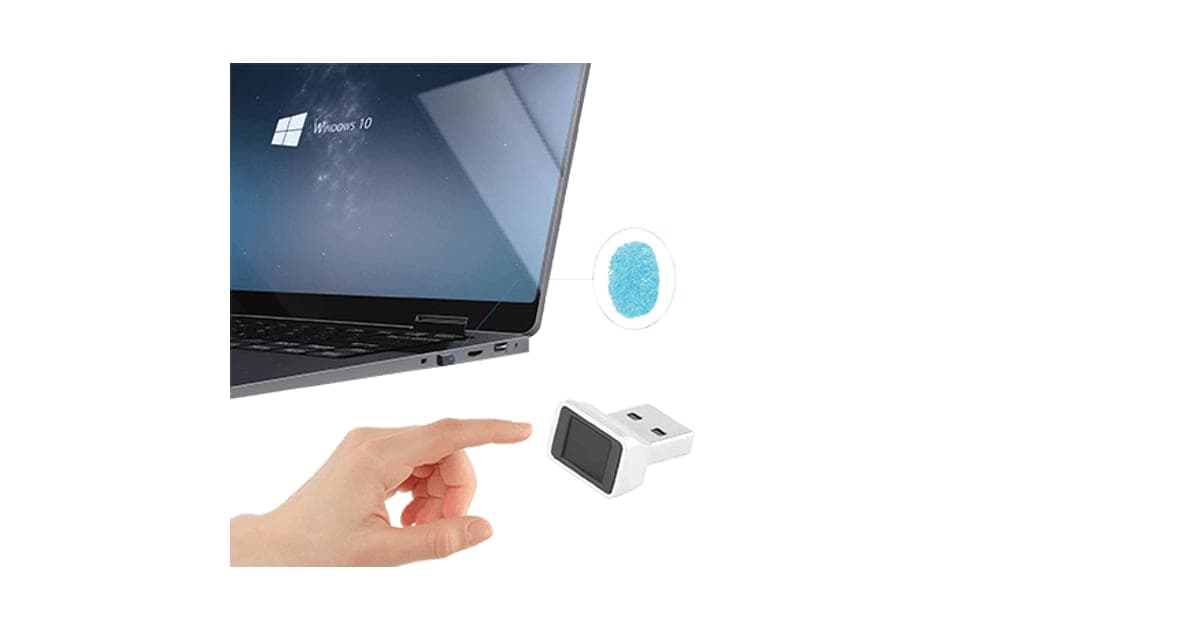
Unbranded network devices rarely get firmware updates. A repeater sees all the traffic that passes through it, although most of that traffic is encrypted by the websites and apps you use. Security-minded buyers usually prefer a brand with an update history. If you care about locking down devices, our NanoSecure fingerprint reader review covers another way buyers try to tighten computer security.
Refunds and returns
The page code mentions a 30-day guarantee "less S&H". The terms cover defective or damaged items within two years, with a returns number needed first. Return postage is at your cost, and parcels with insufficient postage are refused. Returning a $49 repeater to an overseas address may eat into any refund.
Membership offers
The page code also contains text for a "Gadget Discount Club", free for 30 days, after which "$9 may apply". We did not see it on the order page with the United States selected. Read your order email and check for any extra charges on your statement.
Timers, pop-ups and the spin wheel
The page shows a 30-minute countdown, "just bought" pop-ups and a discount spin wheel. None of these affect the product. Take your time.
How to buy WIFI UltraBoost the smart way
- Open the WIFI UltraBoost order page (opens G Com Pte Ltd in a new tab) and select your country.
- Change the preselected five-pack to one repeater, unless you need more.
- Ask support about bands, the connectivity add-on and the plug type before paying.
- Skip the car charger, which has nothing to do with Wi-Fi.
- Note the card statement name, drone720x.com, and save your order email.
- Test the repeater in the weak room as soon as it arrives, while returns are still easy.
How did we score WIFI UltraBoost?
WIFI UltraBoost scores 3.4 out of 10: claim accuracy 0.5, build durability 0.8, price competitiveness 0.5, usability 1.1 and owner satisfaction 0.5, each out of 2. It is a working type of product for one weak room, but its page overstates what repeaters do, gives no specifications, charges for a connectivity add-on and asks about twice the price of branded dual-band extenders.
What owners say
We found no Trustpilot profile for the gadgetxaura.com store and no independent retailer ratings for WIFI UltraBoost. The pages that rank for it are mostly promotional. Owners of generic plug-in repeaters often report that they help in a nearby room, that speeds drop compared with the router, that they need occasional restarts and that setup without WPS is fiddly.
How the score breaks down
We use the five criteria on our how we test page, each out of 2.
| Criterion | Score | Why |
|---|---|---|
| Claim accuracy | 0.5 / 2 | "Faster downloads" and "no more lag" overstate a repeater |
| Build durability | 0.8 / 2 | Simple plug-in device, but unbranded with no stated updates |
| Price competitiveness | 0.5 / 2 | About twice a branded dual-band extender, with a paid connectivity add-on |
| Usability | 1.1 / 2 | Plug-in setup is simple if your router has WPS |
| Owner satisfaction | 0.5 / 2 | No independent ratings for this product |
| Total | 3.4 / 10 |
What we did, and did not, do
Nobody on our team has used WIFI UltraBoost. We read the offer page our link opens with the United States selected, its code and the seller's terms on 4 October 2026, along with TP-Link extender listings, Coolblue's repeater guide, CISA's home network guidance and the top-ranking WIFI UltraBoost pages.
How to use WIFI UltraBoost: placement, setup and fixes
Plug WIFI UltraBoost in roughly halfway between your router and the weak room, where it still gets a strong router signal, then pair it using WPS or its setup page. Give its network a clear name, check the speed in the weak room, and move it closer to the router if the speed is poor. Placement matters more than anything else with a repeater.
- Test first. Run speed tests next to the router and in the weak room.
- Find the halfway point. Somewhere your phone still shows two or three bars of router signal.
- Pair it. Press WPS on the router, then on the repeater within two minutes, or follow the leaflet's browser setup.
- Watch the lights. Most repeaters show a strong or weak router link on the front.
- Name the network clearly. Something like "Home-EXT" so you know which you are on.
- Test again. Check speed in the weak room through the repeater.
- Move it if needed. Closer to the router if the link is weak, closer to the room if coverage is.
Picking the right socket
Use a wall socket at waist height or higher if possible, rather than one behind a sofa or near the floor. Avoid sockets next to microwaves, cordless phone bases, fish tanks, mirrors and large metal objects, which all weaken Wi-Fi. Some repeaters do not work well in power strips, and a blocked socket can hide the status lights.
WPS setup
WPS lets the router and repeater pair at the press of a button. It is quick, but some routers disable it for security reasons. If your router has no WPS button, use the browser setup instead.
Browser setup
Most generic repeaters create their own open network on first power-up. You join it with your phone or laptop, open a setup address in a browser, pick your home network from a list and enter its password. The leaflet should give the address and admin password. Change that admin password as part of setup.
Same name or different name?
Some repeaters let you keep the same network name as the router, so devices switch automatically. Others add "-EXT" to the name. A different name makes it obvious which you are on, but devices may cling to the weak router signal instead of switching. A same name is more convenient but can hide problems.
Using the Ethernet port
If your UltraBoost has a working port, you can plug a smart TV, games console or desktop computer into it. That device then uses the repeater's wireless link back to the router. It is steadier than Wi-Fi from the device itself, but it does not get around the repeater's speed limits.
Testing speed properly
Run each test two or three times and at different times of day, since Wi-Fi varies. Compare the speed in the weak room with and without the repeater. If the repeater makes speed worse, move it closer to the router.
When to restart it
If devices connected to the repeater lose internet while the router works fine, unplug the repeater for ten seconds and plug it back in. If you need to do that often, try a different socket or a different spot.
Troubleshooting a weak link
If the router-link light shows a weak signal, the repeater is too far from the router. Move it one room closer. A repeater with a poor link to the router passes on a poor connection.
When devices will not switch
Phones and laptops sometimes stay connected to a weak router signal when a stronger repeater signal is nearby. Turning Wi-Fi off and on again, or "forgetting" the router network in the weak room, can push them over.
Resetting to factory settings
Most repeaters have a small reset hole. Holding a pin in it for several seconds while powered returns the device to factory settings. This helps if you change your router or Wi-Fi password, since a repeater keeps the old password until you set it up again.
After changing your router
If your internet provider replaces your router, or you change your Wi-Fi password, the repeater will lose its connection. Reset it and pair it again.
Other questions about Wi-Fi repeaters
Do Wi-Fi repeaters work through walls? Yes, but thick walls, brick, concrete and metal weaken the signal. Place the repeater so there are as few walls as possible between it and the router.
Can I use two repeaters? You can, ideally both connected directly to the router rather than one to the other. Chaining single-band repeaters halves speed again at each step.
Does a repeater use much electricity? Small plug-in repeaters typically draw a few watts, so running costs are low.
Will a repeater work with any router? Most repeaters work with standard home routers. Check the security mode, since some older repeaters do not support WPA3.
WIFI UltraBoostScore 3.4/10
Before you buy: Check the final price, shipping and return terms at checkout.
$49.00 at G Com Pte Ltd · Price checked October 4, 2026
Check price at G Com Pte Ltd (opens G Com Pte Ltd in a new tab)We may earn a commission if you buy through our links.
Frequently asked questions
Does WIFI UltraBoost increase internet speed?
No. A repeater can only pass on the speed your internet plan and router already deliver. In a weak-signal room, a better connection can feel faster, but a single-band repeater usually cuts the speed available to devices connected through it.
How much does WIFI UltraBoost cost?
With the United States selected on 4 October 2026, the offer page listed one for $49, two for $69, three for $98, four for $123 and five for $135. The five-pack was preselected. Delivery was listed as free and a 3-year warranty cost $9.
Is WIFI UltraBoost dual band?
The page does not say. It lists no frequency band or Wi-Fi standard. The only speed figure is the 300 Mbps on the Ethernet add-on, which is the usual rating for single-band 2.4 GHz repeaters. Ask support before ordering if you need 5 GHz.
Does WIFI UltraBoost have an Ethernet port?
The international plugs add-on photo shows a repeater with a network port on its side. The order page also sells a $9 Wi-Fi and RJ45 300 Mbps connectivity add-on, so ask support whether the port works without it.
Is WIFI UltraBoost better than mesh Wi-Fi?
For one weak room in a small home, a repeater can be enough. For larger homes or several dead zones, mesh systems give stronger, more consistent coverage under one network name, with better speeds and app support, but they cost more.
Is WIFI UltraBoost legit?
It is a real product sold by G Com Pte Ltd, which lists a Singapore address, email and phone. The concerns are the missing specifications, claims of faster downloads, a paid connectivity add-on, the preselected five-pack and refund terms that leave return postage to you.
Where should I put a Wi-Fi repeater?
Roughly halfway between the router and the weak area, in a spot where the repeater still gets a strong signal from the router. Putting it inside the dead zone itself gives it a weak signal to repeat, which defeats the point.
We may earn a commission if you buy through our links.
Prices accurate as of October 4, 2026. Check the seller's checkout for current pricing, promotions and terms.
What we checked: No hands-on use. Features, photos, prices with the United States selected, the preselected bundle, add-ons and their images, warranty and card statement name from the WIFI UltraBoost offer page our link opens (gadgetxaura.com) on 2026-10-04, plus the bundle and add-on data in the page's own code. Refund terms from the same site's terms page. TP-Link extender prices, Coolblue's guide to Wi-Fi repeaters, CISA's home network security guidance and the top-ranking WIFI UltraBoost pages were read the same day.

About the author
Ryan Mitchell, Consumer Technology Writer
Ryan Mitchell covers new and innovative gadgets for Top10Gadgets: AI devices, wearables, smart accessories, digital services and the beauty tech sold through viral adverts. Ryan likes to find a gadget before it goes main…
- New and innovative gadgets
- AI devices and wearables
- Smart accessories
- Beauty tech
- App and subscription terms
Writing for Top10Gadgets since 2026Full profile